Tools to manage recurring projects and annual planning

At the University, a lot of our tasks relate to points of the academic year and student cycle. Documenting these ahead of time can help with resource planning and training new team members. This guide explores different tools to capture these cyclical tasks.
Microsoft Planner
Microsoft Planner is a task management tool for visually organising, assigning, and tracking work across teams. Microsoft Planner is a great option for task ownership and project management. It integrates with Outlook calendars, allowing you to overlay Planner boards for easy scheduling. You can set priority levels for tasks to highlight what needs attention first and keep your team focused on the most important work.
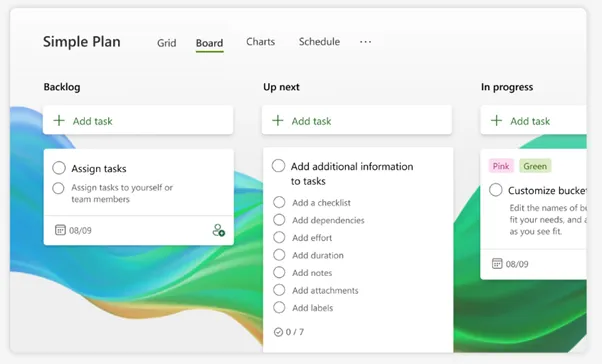
Ideal for: Having visibility of task distribution across your team
How to sign in: Microsoft Planner
Planner tips from our user community
“After I create a task, I upload the relevant standard operating procedure in the attachment field.”
Guide: Attach files, photos, or links to a task – Microsoft Support
“If using the web app, you can export the deadlines to your Outlook calendar to see upcoming tasks.”
Guide: See your Planner schedule in Outlook calendar – Microsoft Support
Microsoft Lists
Microsoft Lists offers a familiar, spreadsheet-like layout similar to Excel and is useful for structured task management. You can create Lists from existing spreadsheets making the initial setup simpler. You can use conditional formatting, build custom views and automate notifications for deadlines
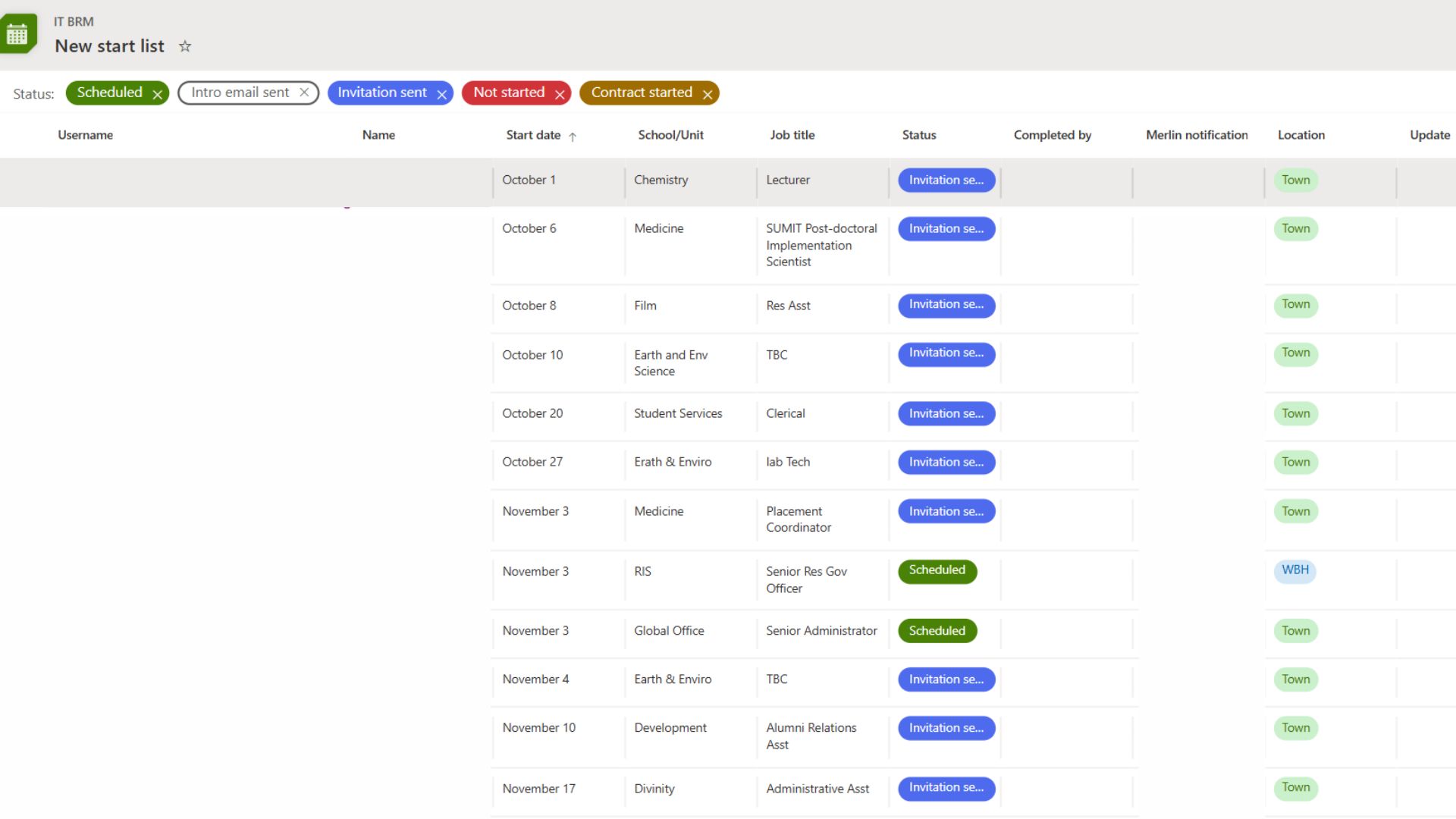
Ideal for: workflows with ‘particular’ stages
How to sign in: Microsoft Lists
A tip from our community
“I use board view with the months rather than calendar for more details”
Guide: Create, change, or delete a view of a list or library – Microsoft Support
Microsoft Loop
Microsoft Loop is a collaborative workplace tool that includes tasks, notes and content. These exist as flexible components which you can share across Teams, Outlook and Word. Colleagues can update the components in any app and all locations will stay in sync. For example, you can update your task list during your meeting in the chat and all other locations will update in real time.

Ideal for: Managing recurring tasks, collaborative project planning as well as brainstorming and sharing ideas.
How to sign: Microsoft Loop
Tips from our community
“In Loop Workspaces, you could combine different tools to make it more comprehensive. Like one page with a spreadsheet to capture the events, link the semester dates website, create linked pages with the description of the task/SOPs, and link all relevant documentation like policies, etc, all in one place. You could create a task list each year to track progress of specific tasks that require monitoring (within the workspace). The interesting aspect of Loop is that you can hyperlink the different pages in the workspace without having to repeat info.”
Guide: Get started with Microsoft Loop – Microsoft Support
Outlook Calendars
Outlook Calendars offer a straightforward way to manage annual or semester-based dates. Create a new blank calendar, set recurring tasks, drag and drop to adjust dates, and share the calendar with colleagues. Categories make filtering easy, and the list view offers a quick way to scan upcoming tasks.

Ideal for: scheduling key milestones, resource coordination and team visibility.
How to sign in: Outlook calendar
A tip from our community
“I add a recurring calendar entry when those tasks are due for completion. It’s quick and easy to set up a note in my calendar and gives me a reliable reminder every time.”